
Hello!
If you're looking for an effective way to promote your medical devices, healthcare services, medical software, or other healthcare solutions to hospitals, clinics, and pharmacies, this guide is for you.
Instead of visiting healthcare facilities one by one or spending a fortune on conference exhibitions and advertisements, there's a smarter way to reach verified healthcare professionals directly.
Welcome to the Medverse Service Marketplace.
In this guide, we'll walk you through the entire service listing process step by step, complete with screenshots, so you can start promoting your business today.
What is the Medverse Service Marketplace?
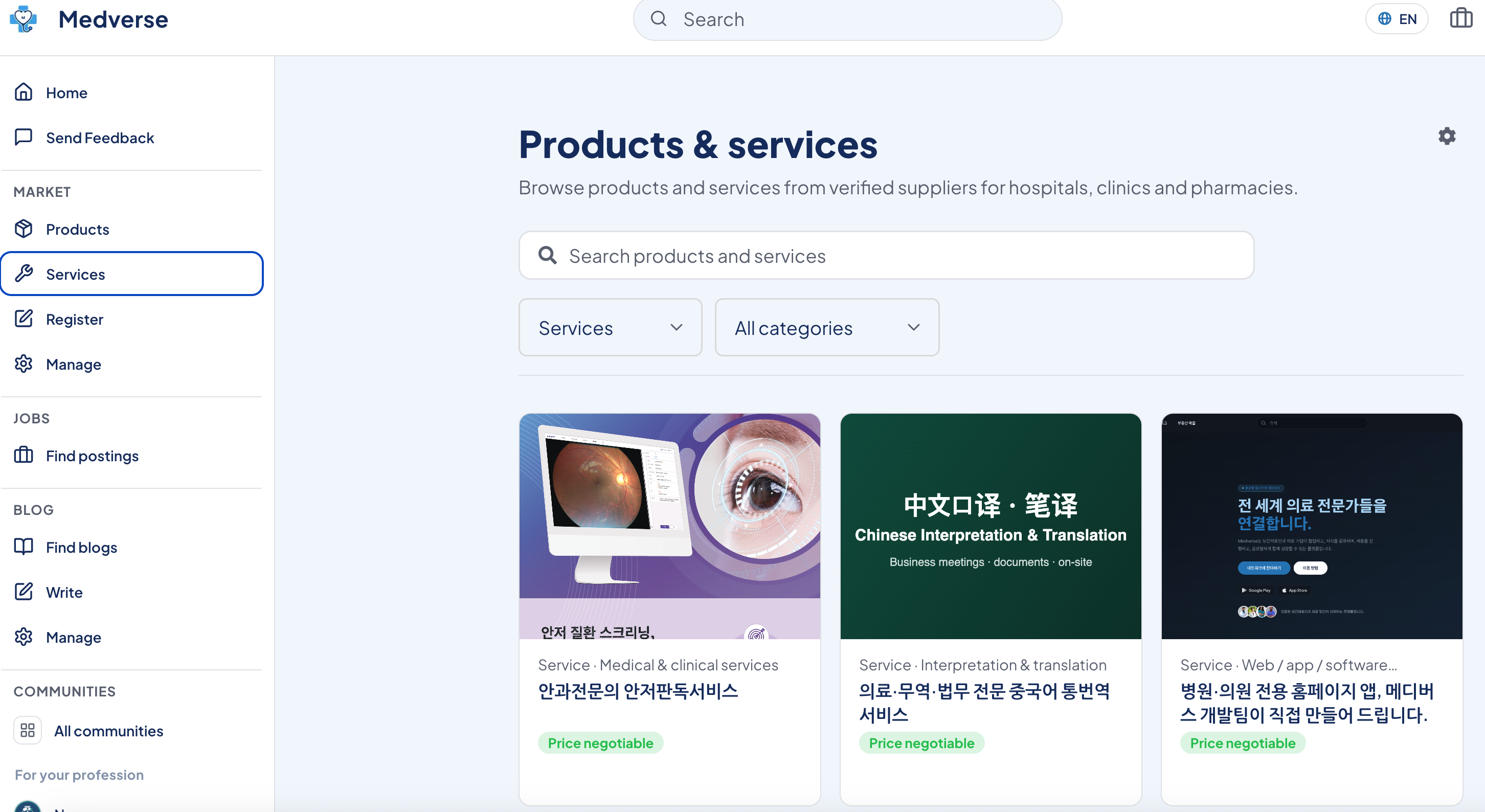
The Medverse Product & Service Marketplace is a platform where verified suppliers can showcase products and services specifically designed for hospitals, clinics, and pharmacies.
A wide variety of professional services are already listed on the platform, including:
Retinal image interpretation by board-certified ophthalmologists
Chinese medical interpretation and translation services
Hospital website development
Medical software solutions
And many more
Healthcare professionals can browse or search for services they need. When they find something they're interested in, they simply click the "Chat with Seller" button to contact you instantly—no waiting for emails or lengthy inquiry forms.
Benefits of Listing Your Service
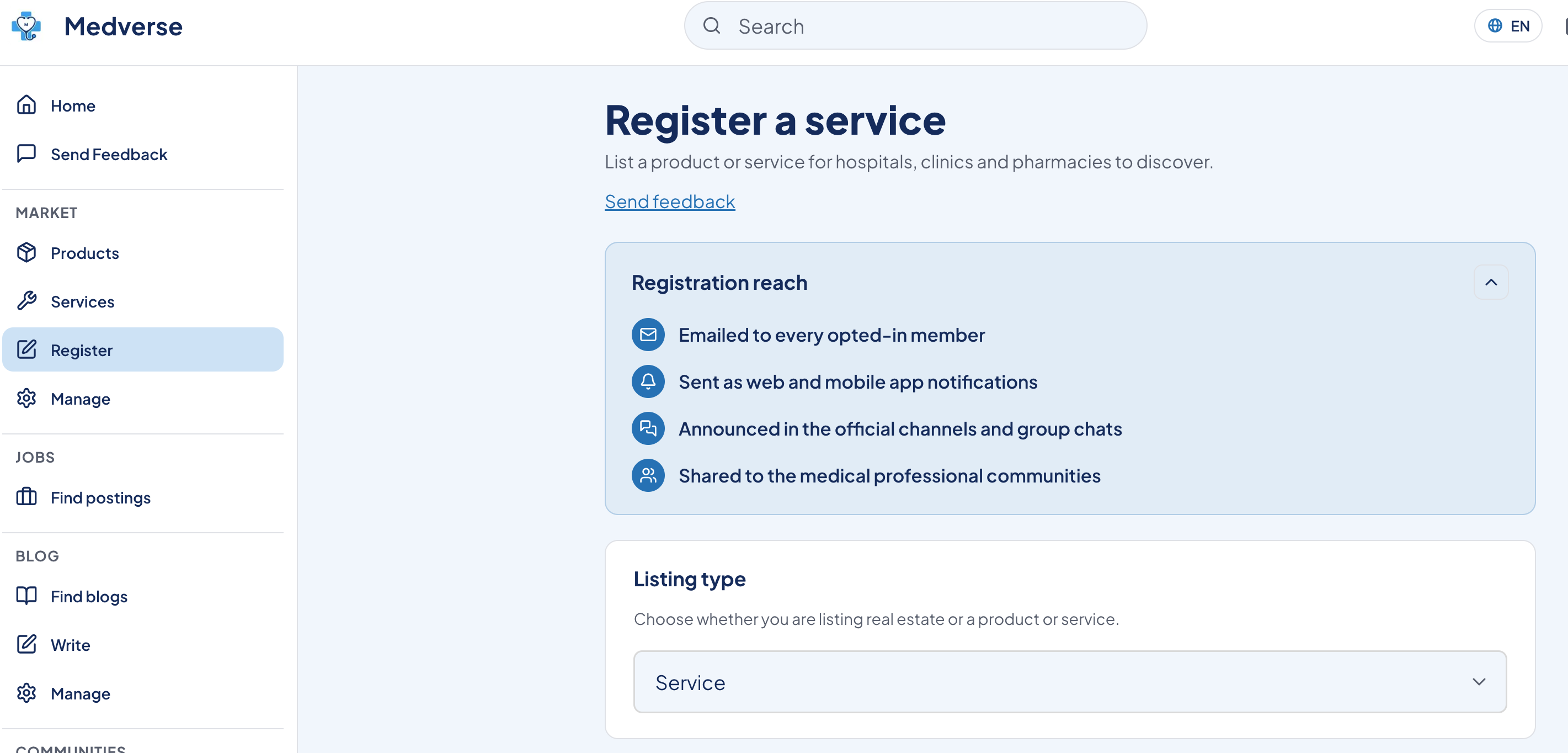
Listing your service on Medverse is more than simply publishing an advertisement. Every new listing receives additional promotional exposure through multiple channels:
📌 Email campaigns sent to members who have opted in to receive updates
📌 Push notifications through the Medverse website and mobile application
📌 Promotion via the official Medverse KakaoTalk channel and group chats
📌 Exposure within the Medverse healthcare professional community
This allows your business to reach healthcare professionals directly—without relying on traditional sales representatives.
How to List Your Service — Just 5 Simple Steps
Step 1. Click "Create Listing"
After logging in, click "Create Listing" from the left-side menu to open the product and service listing page.
At the top of the page, you'll see the four promotional benefits included with every listing. Below that, you'll find a dropdown menu to select your listing type.
💡 There are two listing types available:
Real Estate
Services
If you're promoting a medical device, healthcare solution, software, or professional service, simply choose Services.
Step 2. Select Your Service Category
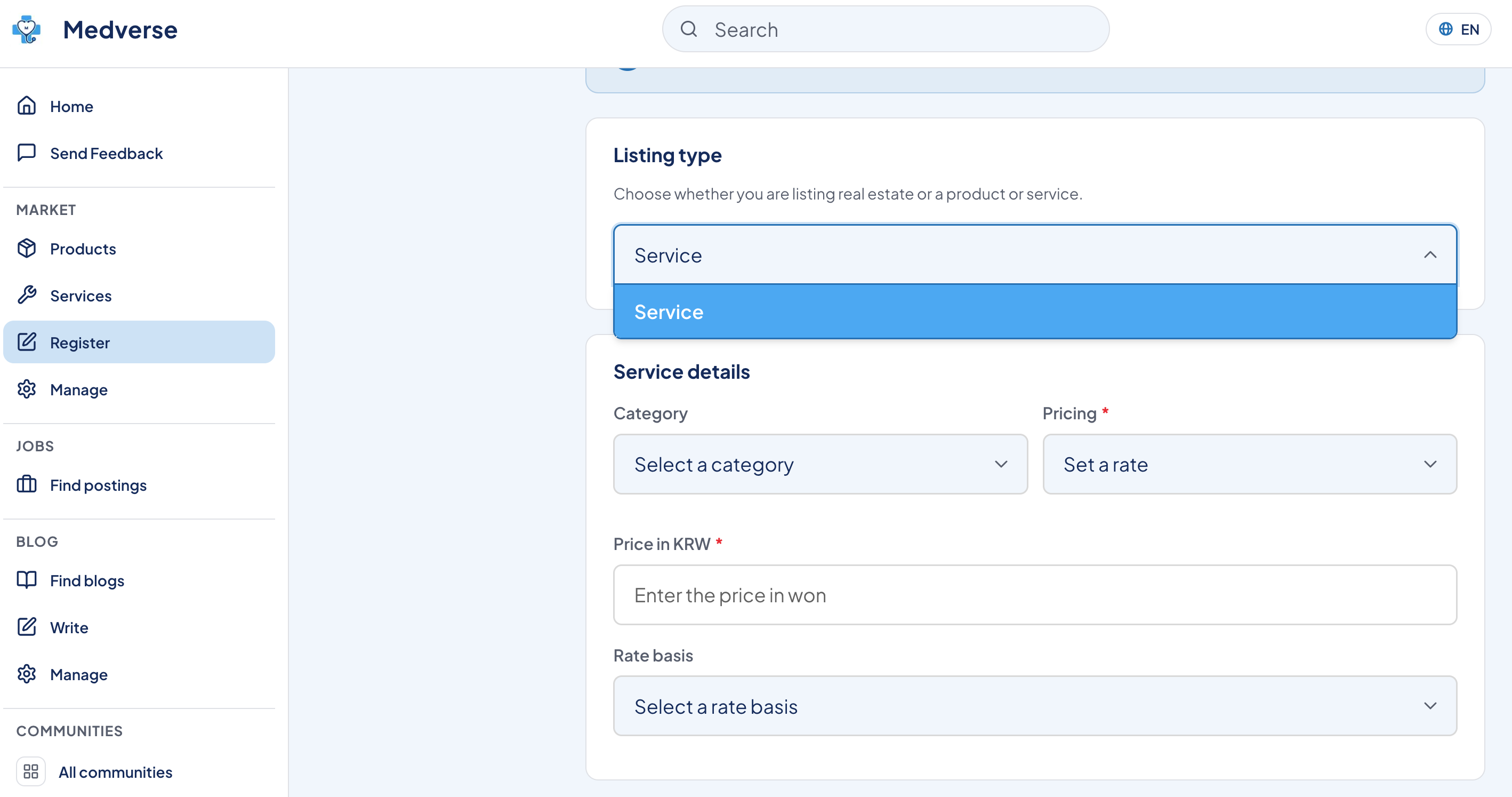
Once you choose Services, a service information section will appear.
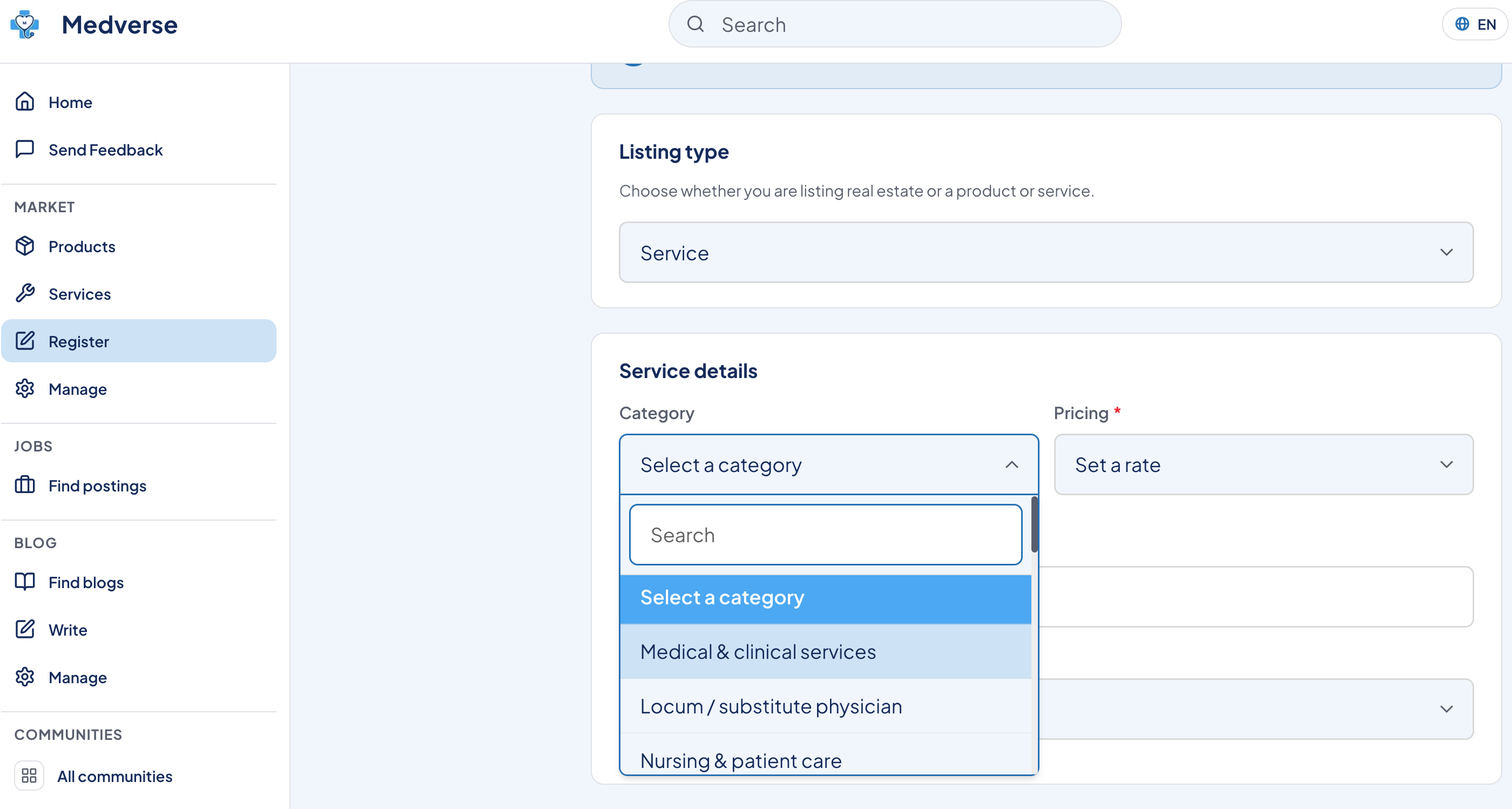
Next, select the category that best matches your business.
Available categories include:
Medical & Clinical Services
Interpretation & Translation
Web, App & Software Development
Licensed Real Estate Services
Other Professional Services
Choose the category that best represents your service.
Step 3. Enter Pricing & Service Information
After selecting your category, fill in the following information.
Pricing
Select Price Negotiable if pricing varies depending on customer requirements.
Or enter a fixed price in your local currency.
Pricing Unit
Choose the billing method that best fits your service, such as:
Per Hour
Per Case
Monthly Subscription
Other
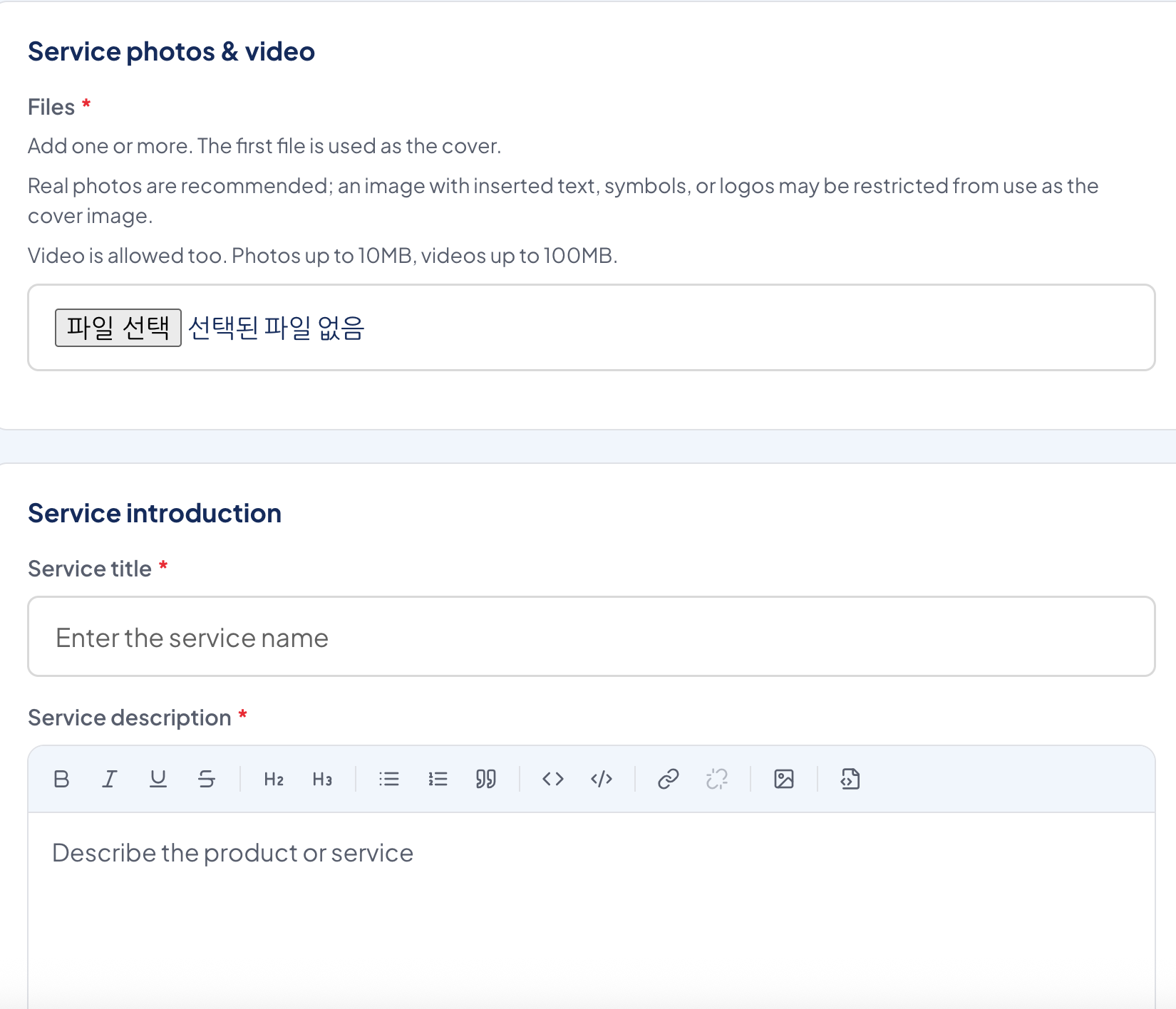
Upload Photos & Videos
At least one image is required.
The first uploaded image will automatically become your cover image.
Images: up to 10 MB
Videos: up to 100 MB
Images containing only text, logos, or graphic symbols may not be accepted as the cover image.
💡 Your cover image is the first thing healthcare professionals will see, so choose your most attractive and professional image first.
Step 4. Write Your Service Description
In the Service Description section, complete the following fields.
Title (Required)
Create a title that clearly explains what your service offers.
Examples:
Retinal Image Interpretation by Board-Certified Ophthalmologists
AI Fundus Screening Solution for Hospitals & Health Screening Centers
Description (Required)
Use the built-in editor to freely format your content with:
Bold text
Italics
Bullet points
Numbered lists
Headings
The more detailed your description is, the more likely healthcare professionals will contact you.
Include information such as:
Key service features
Benefits for healthcare providers
Suitable hospital or clinic types
Service workflow
Contact information
Why healthcare professionals should choose your service
A well-Step 5. Enter Your Contact Information & Publish
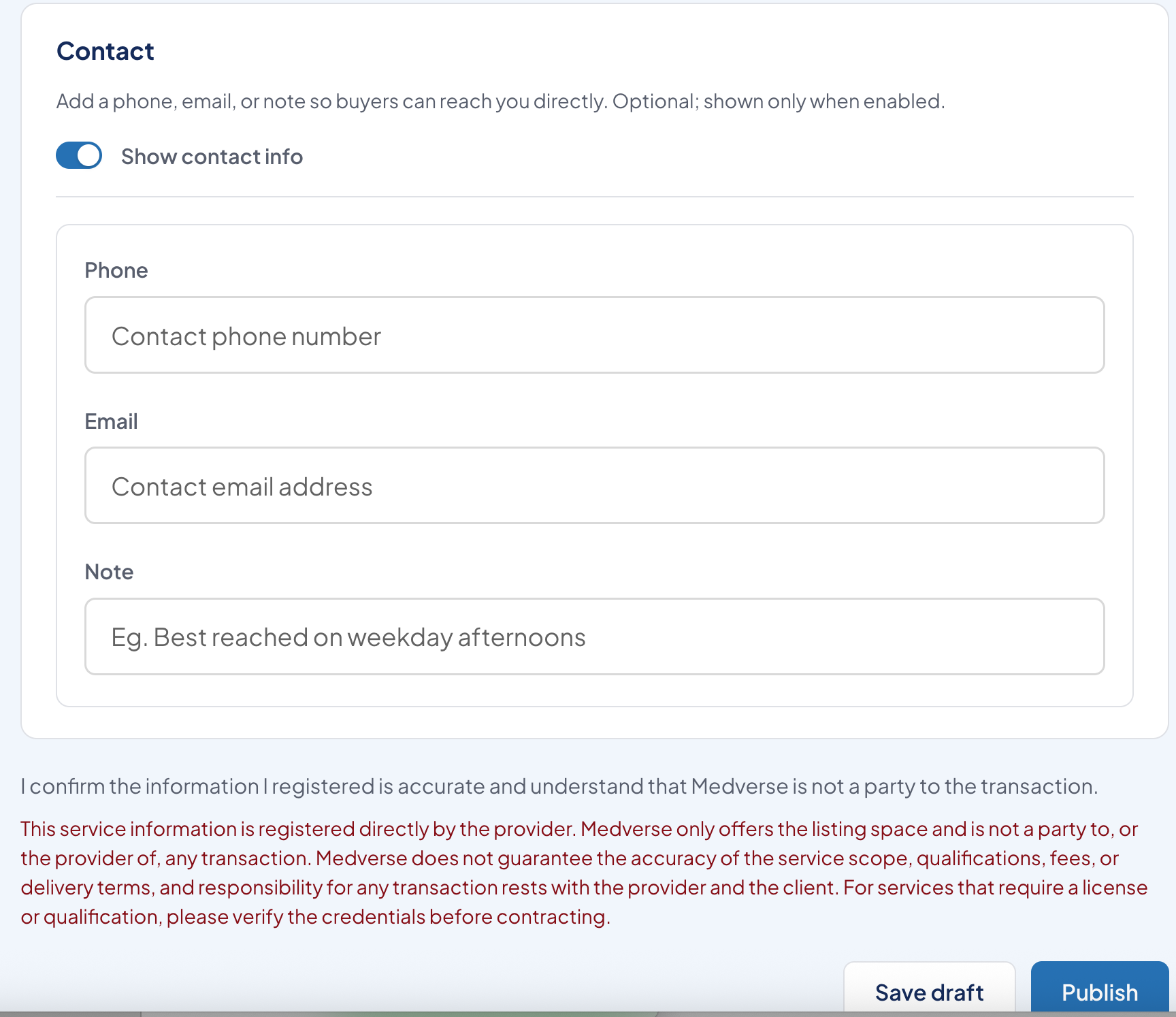
Finally, complete the Contact Information section.
You may include:
Phone Number (Optional)
Email Address (Optional)
Notes (Optional)
Example:
"Please contact us during weekday afternoons."
Although contact information is optional, providing it allows healthcare professionals to reach you not only through chat but also by phone or email.
Before publishing, check the confirmation box acknowledging that:
"I confirm that the information provided is accurate and understand that Medverse is not a party to any transaction."
Then click Publish Listing to make your service live.
If you're not ready yet, simply click Save Draft and complete your listing later.
How Your Listing Appears
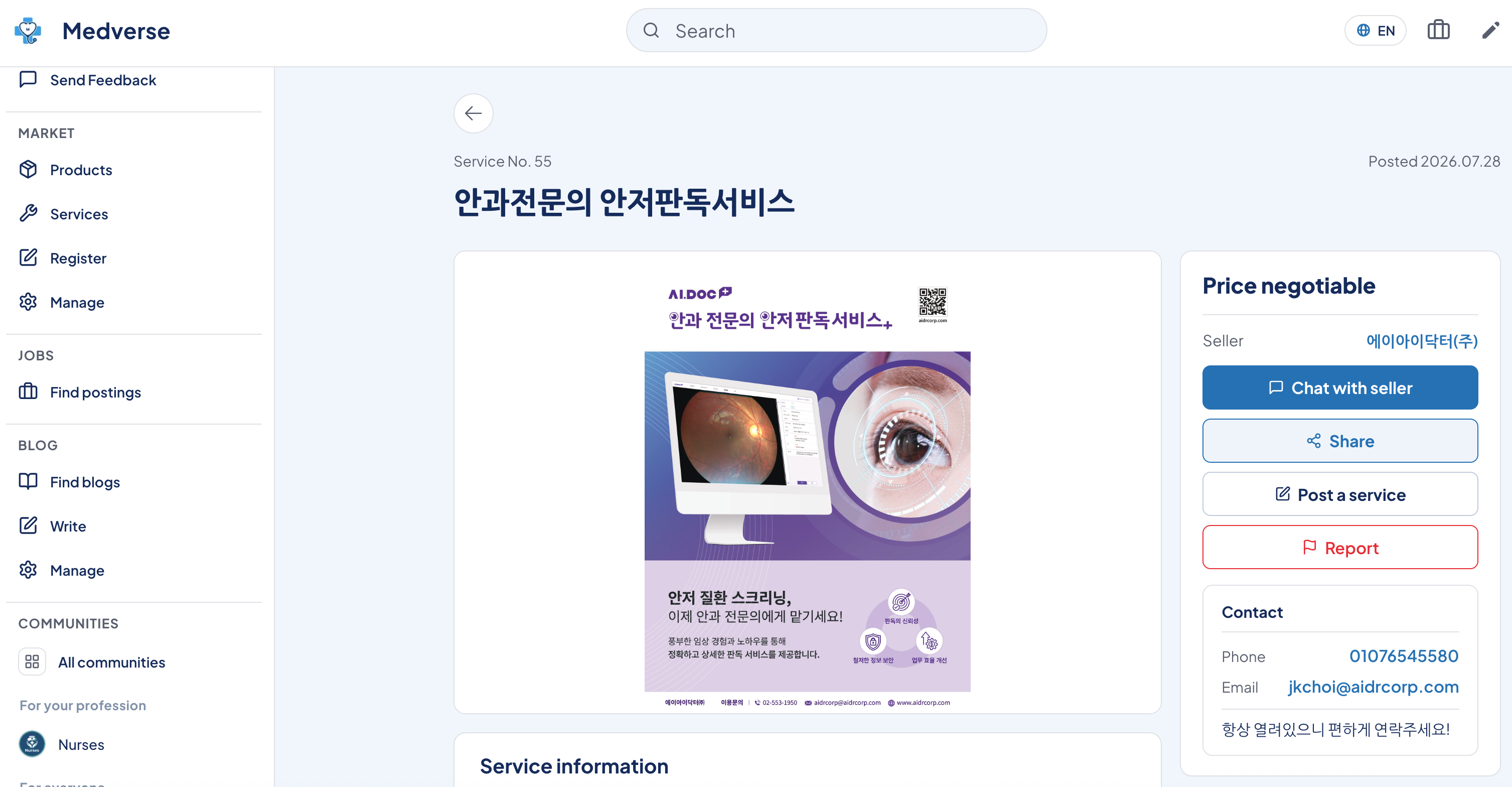
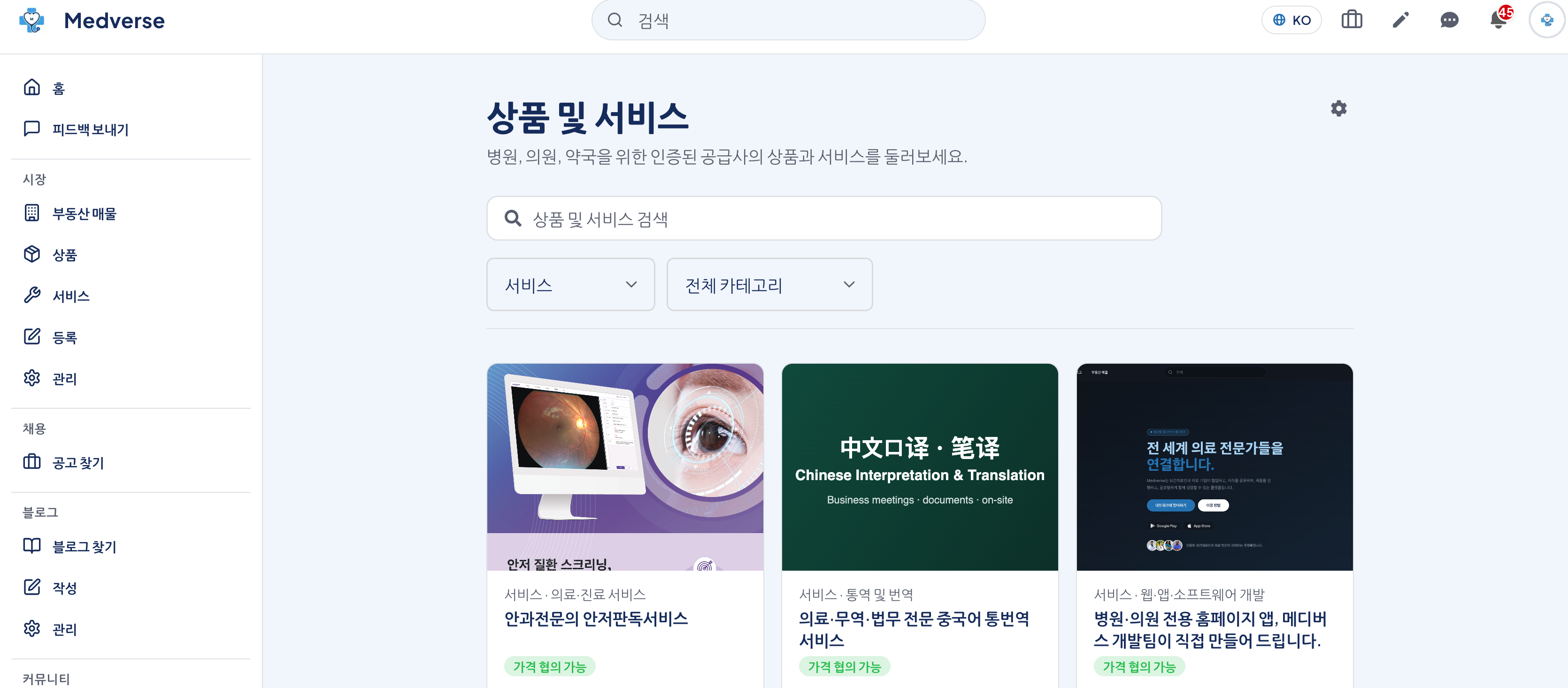
Once your listing is published, it becomes visible immediately in the Products & Services Marketplace.
When healthcare professionals click your listing, they'll see:
Listing ID
Date Published
Service Title
Cover Image
Detailed Description
Price (Negotiable or Fixed)
Seller Information
Chat with Seller button for instant one-on-one messaging
Contact Information (Phone Number & Email)
Interested physicians, clinic managers, or hospital administrators can simply click Chat with Seller to contact you instantly.
No cold calls. No sales visits.
Just inbound inquiries from verified healthcare professionals.
Quick Summary
✅ Step 1 — Click Create Listing
✅ Step 2 — Select Services and choose a category
✅ Step 3 — Enter pricing, billing method, and upload images
✅ Step 4 — Write your service title and description
✅ Step 5 — Enter contact information and click Publish Listing
✅ Respond instantly when healthcare professionals contact you via chat.
List Your Service for Free
During the current launch period, listing your service on Medverse is completely FREE.
Whether you provide:
Medical Devices
Healthcare Solutions
Medical Software
AI Healthcare Services
Medical Interpretation & Translation
Licensed Real Estate Services
Hospital Consulting
Or any other service for hospitals, clinics, and pharmacies
you're welcome to join the Medverse Marketplace and start reaching verified healthcare professionals today.
If you have any questions, feel free to leave a comment below.
👉 Join Medverse Today
👉 Visit the Medverse Service Marketplace
Partnership & Vendor Inquiries
Medverse Marketing Team
Bang Migeum
Tel: +82-10-7469-0671
Email: support@medverse.com
More posts
의료기기·서비스 홍보하는 법 — 메디버스 서비스 등록 가이드
안녕하세요! 오늘은 의료기기, 헬스케어 서비스, 의료 소프트웨어 등을 병원·의원·약국에 홍보하고 싶으신 분들한테 딱 맞는 정보 가져왔어요. 영업사원이 병원 일일이 방문하거나, 학회 광고 비용 쓰지 않아도 검증된 의료인한테 직접 닿는 방법이 있거든요. 바로 의료인 전용 플랫폼 메...
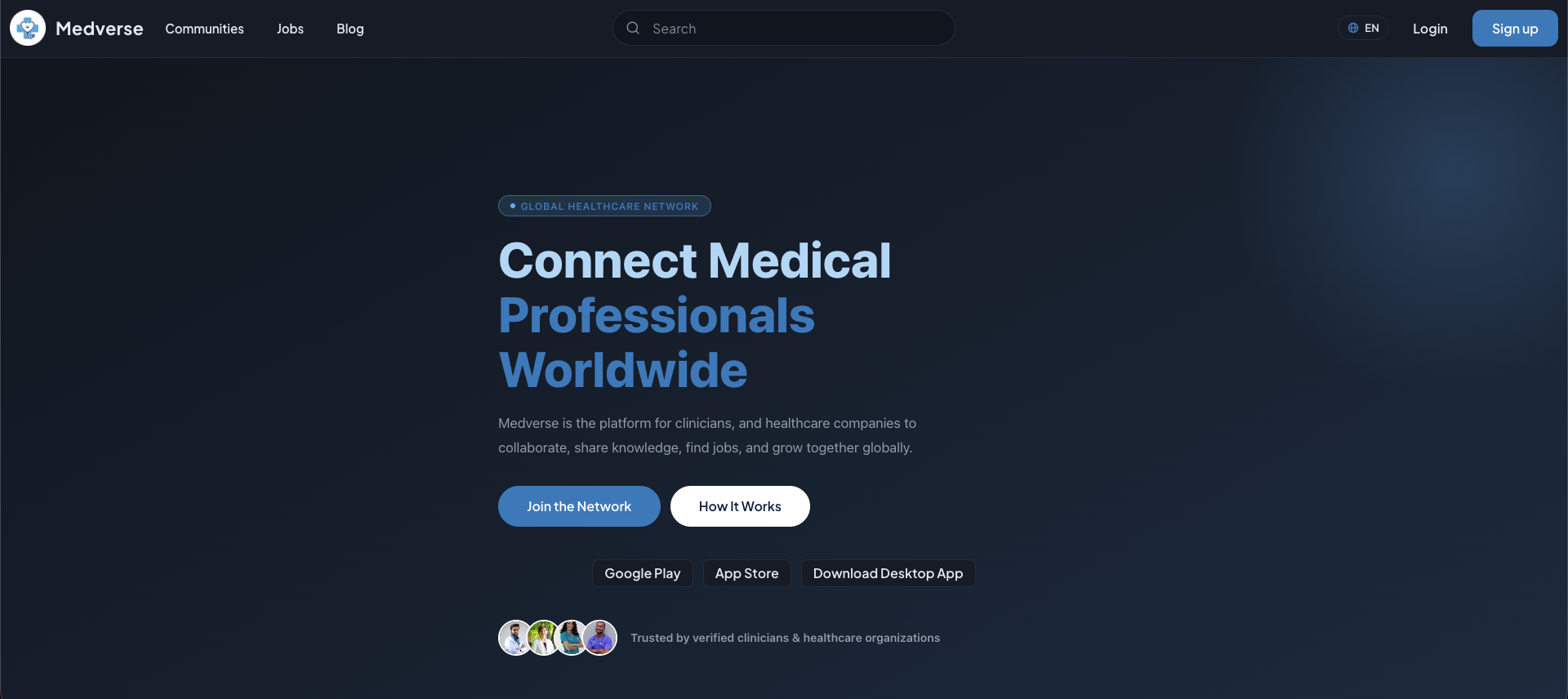
Medverse — the platform for every healthcare professional. Start free today at medverse.com
Why Medverse — Healthcare Isn't Done by Clinicians Alone ## Why We Started Medverse What we set out to build is simple: one place where healthcare professi...
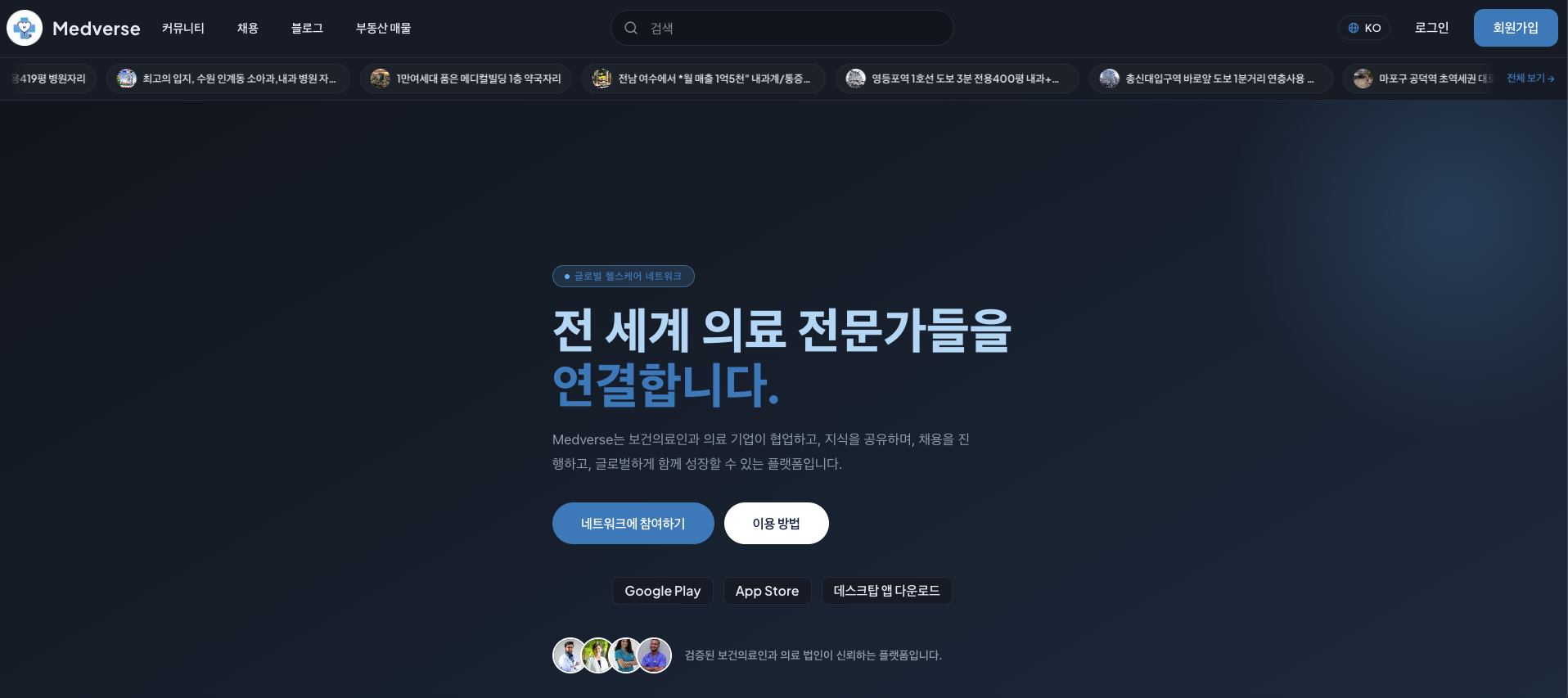
모든 보건의료인을 위한 플랫폼, 메디버스 - 지금 medverse.com에서 무료로 시작하세요
왜 메디버스인가 — 의료는 보건의료인 혼자 하는 일이 아닙니다 ## 메디버스를 시작한 이유 저희가 만들고 싶었던 건 단순합니다. 보건의료인, 의료법인과 기관, 그리고 그들을 둘러싼 사람들 — 공인중개사부터 제약회사, 개발자까지 — 이 한자리에서 서로 소통하는 공간. 그런데 막...
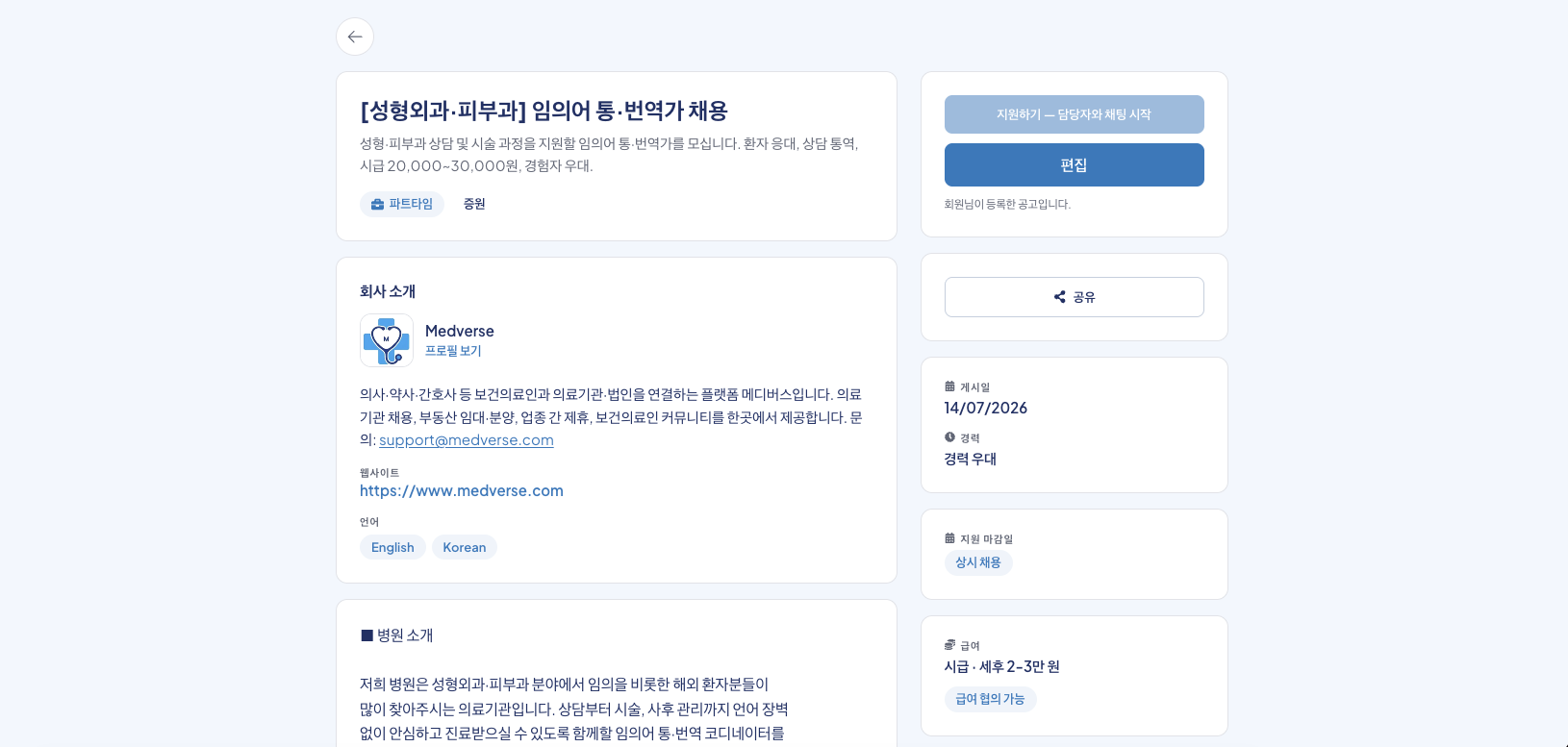
병원·의원을 위한 메디버스 통·번역 인력 채용 공고 등록 가이드
메디버스는 병원·의원·의료 관련 기업이 직접 의료 인력과 지원 인력을 채용하고, 지원자와 1:1 채팅으로 바로 연결될 수 있는 의료 채용 플랫폼입니다. 이 글은 외국인 환자 응대를 위한 통·번역 인력 채용 공고를 등록하는 과정을 순서대로 안내합니다. 원무·채용 업무를 담당하시는...
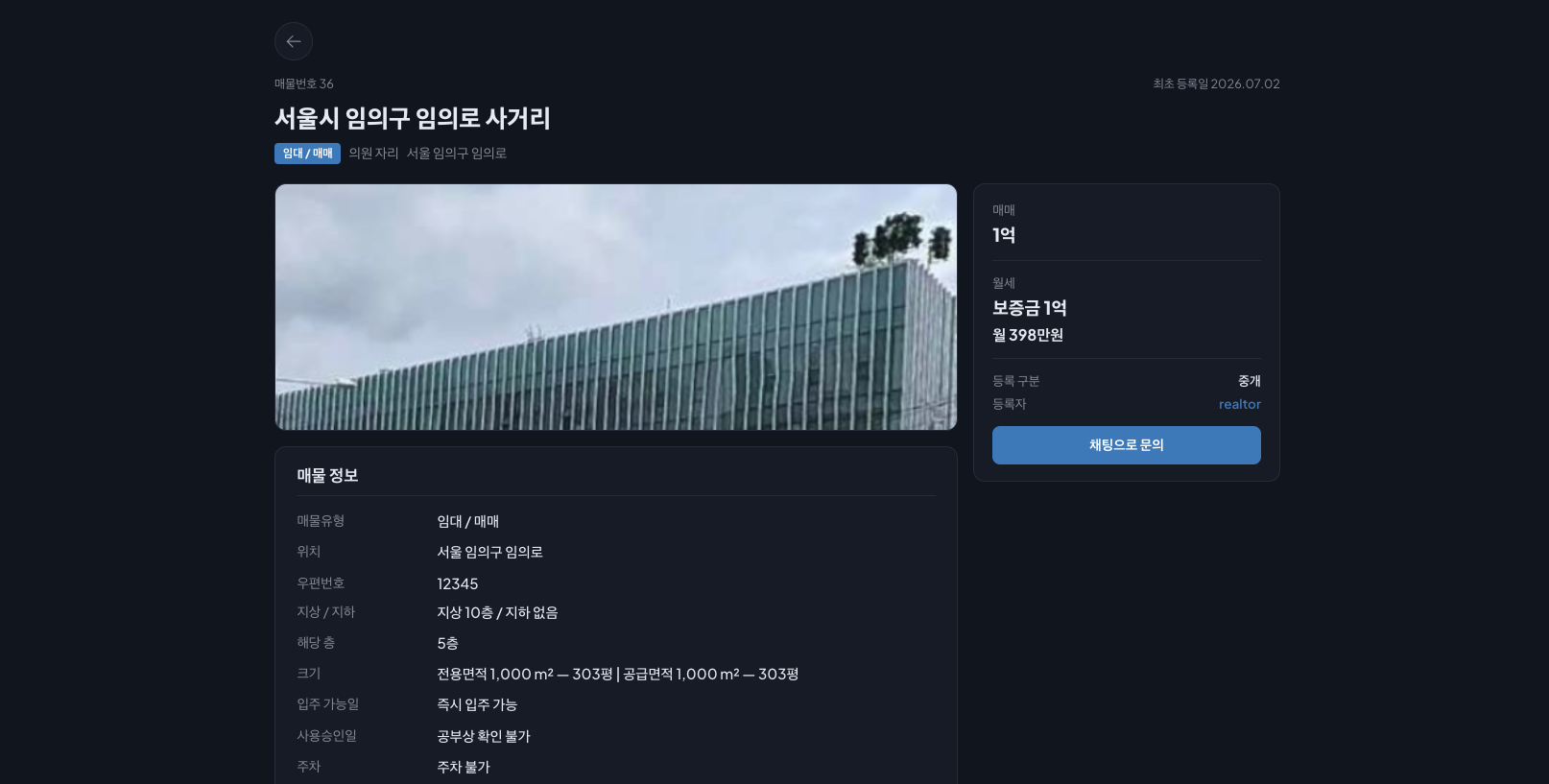
부동산 매물을 등록하시는 분을 위한 메디버스 매물 등록 가이드
메디버스는 병원·의원·약국·치과 등 의료시설 자리는 물론, 병원을 지을 토지·부지까지 매매·임대·양도·분양으로 등록하고, 관심 있는 분과 1:1 채팅으로 바로 연결될 수 있는 부동산 매물 플랫폼입니다. 이 글은 매물 등록 계정으로 로그인하는 단계부터 매물을 등록하고, 이용자가 그...
병원 원무부서를 위한 메디버스 의사 채용 공고 등록 가이드
메디버스는 병원·의원·의료 관련 기업이 직접 의료 인력을 채용하고, 지원자와 1:1 채팅으로 연결될 수 있는 의료 채용 플랫폼입니다. 이 글은 병원 계정을 처음 만드는 단계부터 채용 공고를 올리고, 지원자가 그 공고를 어떻게 보게 되는지까지를 순서대로 안내합니다. 원무부서에서 채...